
Design your own diamond painting – a guide to the diamond painting editor
With the diamond painting editor, you design your own diamond painting and see the finished result right away, before you order. Choose a photo from your phone or create one with AI, choose the size and the diamond shape, adjust the picture and finish single diamonds by hand. Your kit is made from exactly the pattern you saw in the editor.
This guide takes you through the editor step by step.
In short
- Choose a photo or create a picture with AI in four styles
- 20 sizes from 30×30 cm to 80×160 cm, portrait, landscape and square
- DMC colours are chosen automatically to match your picture, and you can change them by hand
- Your photo stays on your device: the editor creates the diamond pattern in your browser
- Works on phones and computers
Step 1: Choose a photo or create one with AI

Open the diamond painting editor and choose a photo from your phone or computer. The editor opens regular JPG and PNG photos as well as iPhone HEIC photos. If you want to see how the editor works first, choose Try with a sample photo.
The editor creates the diamond pattern in your browser, so the photo you choose never leaves your device. Your unfinished design is saved in your browser, and you can pick it up later from Continue your design on the start screen.
No suitable photo? Create one with AI

Choose Create a picture with AI and describe what the picture shows: the subject, the place and the mood. Pick a style (illustration, painting, photo or storybook) and the orientation. The picture is usually ready in about 15 seconds, and you can use it in the editor just like your own photo.
Step 2: Choose the diamond shape and the size

Diamond shape
- Square (2.5 mm): the diamonds sit tightly side by side, and the picture comes out sharper.
- Round (2.8 mm): easier and quicker to place, a good choice for beginners.
Size
The editor first shows the most popular sizes. Choose Show all to see every size. A bigger size means more diamonds and more detail. If the preview looks too coarse, try a bigger size. The editor tells you if your photo is not sharp enough for the chosen size.
The colours are chosen automatically to match your picture. The maximum depends on the size: 35 colours when the shorter side is 30 cm, 45 colours when it is 40 cm, and 60 colours when it is 50 cm or more. The price does not depend on the number of colours.
Step 3: Crop and adjust the picture

Crop the photo so that the main subject is in the middle. In the crop view you can also turn the canvas from portrait to landscape or square.
Adjust the picture with three controls:
- Brightness lightens or darkens the picture and brings out shaded areas.
- Contrast strengthens the light and dark tones and makes the picture livelier.
- Detail sharpens edges and small details. Too much makes the picture grainy.
The preview updates instantly. Open the close-up or pinch the picture to see the diamonds up close.
Step 4: Finish by hand

Choose Edit to fix single diamonds. There are four tools:
- Pen paints diamonds in the chosen colour. The pen covers one diamond or an area of 2×2 or 3×3 diamonds.
- Fill changes a connected area of the same colour at once.
- Picker takes a colour straight from your design.
- Move moves the picture. On a phone, you zoom and move with two fingers.
In a colour's menu you can see where the colour is used, replace it everywhere at once or remove it completely. Add colour finds any DMC colour by its code. Every change can be undone.
On a computer, the mouse wheel zooms, the right mouse button picks a colour, and you move the picture by dragging with the space bar held down. Keys 1–4 switch tools.
Step 5: Add to cart

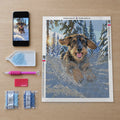
When you are happy with your design, add it to the cart. If you like, add the finishing varnish, which protects the finished painting and gives it a shine. The kit includes everything you need: the canvas printed with your pattern, the diamonds in numbered bags, tools, a colour list and instructions. We make your kit in 1–3 working days.
Tips for a great result
Which photos work best?
- One clear main subject, for example one person or one pet
- Good lighting without strong shadows
- The subject is big enough in the photo
- The subject stands out from the background
What to avoid?
- Dark or blurry photos
- Group photos with small faces
- Small social media pictures and screenshots
Choosing the size for your photo
- Portrait of a face: at least 40×50 cm, preferably 50×70 cm
- Pet: 40×50 cm is often enough
- Landscape or wedding photo: 60×80 cm or bigger
Frequently asked questions
Can I add as many colours as I like?
You can add and change colours by hand up to the maximum for the size (35, 45 or 60 colours).
Can you design the painting for me?
If you would like us to design it for you, order a custom diamond painting. You just upload your photo, and we take care of the rest.
Is my photo safe?
The photo you choose never leaves your device. With your order, we only store the finished diamond pattern. You can read more in our privacy policy.
Start your own project
A diamond painting kit comes with the canvas, the diamonds and the tools in one package.